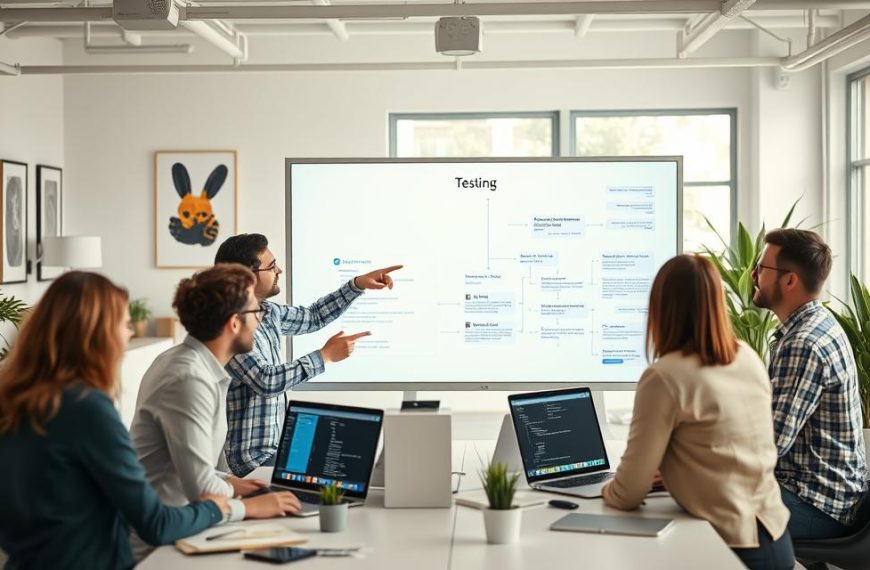
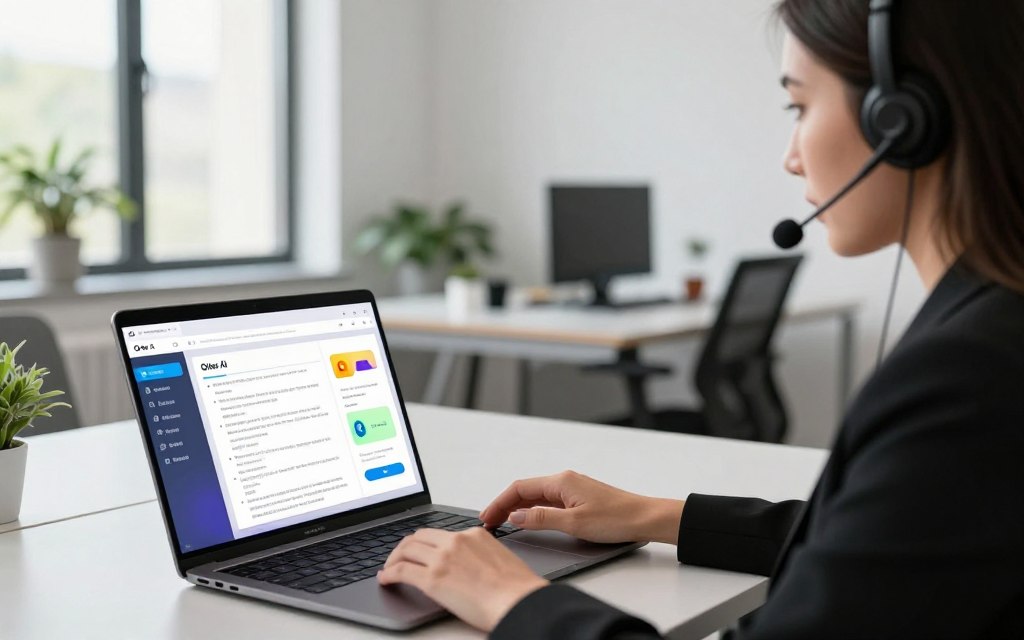

In today’s fast-paced work environment, clear communication matters. This guide helps Microsoft Teams users improve meetings with advanced transcription tools. Learn how to use otter ai with teams to create searchable notes, summaries, and follow-up tasks.
Learn about account setup, Teams permissions, and calendar connectivity. Explore recording workflows, Teams meeting transcription, transcript sharing, and fixes for common issues. Review pricing and collaboration practices for a complete understanding of the Otter AI Microsoft Teams integration.
Integration steps and available features may vary by your Otter AI plan, Microsoft 365 administrator settings, and organizational policies. Use this tool transparently: notify all participants and get consent before recording or transcribing meetings.
Key Takeaways
- Learn the essential steps for integrating Otter AI into Microsoft Teams.
- Understand the importance of participant consent before recording meetings.
- Explore various features such as transcription and searchable notes.
- Get tips on troubleshooting common issues during integration.
- Discover pricing options and collaboration practices for effective use.
What Is Otter AI and Why Use It with Microsoft Teams
Using the Otter AI meeting assistant with Microsoft Teams improves meeting notes and access. It captures speech, creates accurate transcripts, and produces automated meeting summaries. This AI-powered Microsoft Teams transcription tool helps teams focus on collaboration instead of taking notes by hand.
Understanding Otter AI’s Core Capabilities
Otter AI has several core capabilities that help every team using Microsoft Teams. These features include:
- Real-Time Transcription: Otter AI captures spoken words instantly, providing a live transcript during meetings.
- Speaker Identification: The tool can distinguish between different speakers, making it easier to follow discussions.
- Automated Meeting Summaries: After each meeting, Otter AI generates concise summaries that highlight key points and action items.
Benefits of Pairing Otter AI with Microsoft Teams
Pairing Otter AI with Microsoft Teams offers many benefits, including accessible AI meeting notes:
| Benefit | Description |
|---|---|
| Improved Accessibility | Transcripts help team members who may have missed the meeting catch up quickly. |
| Preservation of Decisions | Automated notes ensure that all decisions made during meetings are documented accurately. |
| Action Item Tracking | Clear notes make it easier to track tasks assigned during meetings. |
Microsoft Teams provides live captions, but Otter AI transcripts give a more complete meeting record. Review AI-generated content for accuracy, especially when meetings use technical terms, speakers overlap, or audio quality is poor. This check helps notes reflect the actual discussions and decisions.
For more insights on using Otter AI effectively, read this guide on recording a Microsoft Teams meeting.
Prerequisites for Integrating Otter AI with Microsoft Teams
Before integrating Otter AI with Microsoft Teams, confirm your accounts, permissions, and technical needs. These steps support a smooth, effective setup.
Required Accounts and Permissions
For Otter AI account setup, confirm your Microsoft 365 permissions and Teams app permissions first. Then gather the following:
- Otter AI Account: Sign up for an Otter AI account if you don’t already have one. This account is crucial for accessing all the features.
- Microsoft Teams Access: Ensure you have access to Microsoft Teams, as this is where the integration will take place.
- Microsoft 365 Permissions: Check that you have the necessary permissions to install third-party applications. Your organization may require admin approval for the Otter AI app.
- Teams App Permissions: Make sure that the Teams administrator has granted permission for Otter AI to access your calendar and other necessary features.
System and Browser Requirements
Review these browser requirements for Otter AI and other system needs:
- Supported Browser: Use a current version of a supported browser such as Google Chrome, Mozilla Firefox, or Microsoft Edge. This is vital for a smooth experience.
- Stable Internet Connection: A reliable internet connection is essential for real-time transcription and collaboration.
- Functional Microphone and Speakers: Ensure that your device has a working microphone and speakers to capture audio effectively.
- Updated Teams Application: Make sure your Microsoft Teams desktop or web application is up to date to avoid compatibility issues.
Also, review these privacy and compliance checks:
- Organizational Recording Policies: Familiarize yourself with your organization’s policies regarding recording meetings.
- Participant Consent: Always obtain consent from meeting participants before recording.
- Data Retention Rules: Understand how long your organization retains recorded data and transcripts.
- External Services Restrictions: Be aware of any restrictions on sending meeting information to external services.
https://www.youtube.com/watch?v=tjGjiao5kr8&xstg=CAMSBhUDzO3xHw%3D%3D
With the right accounts, permissions, and technical setup, you can integrate Otter AI with Microsoft Teams successfully.
Step-by-Step Guide: How to Use Otter AI with Teams
This guide explains how to connect Otter AI to Teams. You will learn how to use live Teams transcription and collaboration tools during meetings.
Step 1: Create Your Otter AI Account
Signing Up with a Work Email
First, create an Otter AI account with your work email. This links your account to your professional identity. It also makes collaboration easier.
Verifying Your Account
After signing up, check your email for a verification link. Click the link to activate your account. This lets you access all Otter AI features.
Step 2: Install the Otter AI App in Microsoft Teams
Adding Otter AI from the Teams App Store
Next, install Otter AI in Teams through the Teams App Store. Search for Otter AI, then click on “Add” to connect it to Teams.
Granting Necessary Permissions
During installation, Otter AI will request access to your calendar and microphone. Grant these permissions to enable full functionality.
Step 3: Connect Otter AI to Your Microsoft Teams Calendar
Enabling Calendar Sync
Open Otter AI settings and turn on Otter AI calendar sync. This feature helps Otter AI find your scheduled meetings automatically.
Selecting Which Meetings to Record
Choose whether to record Teams meetings with Otter AI for all meetings or selected ones. This choice helps you capture only relevant discussions.
Step 4: Start Recording and Transcribing a Teams Meeting
Launching Otter AI During a Live Meeting
When the meeting starts, launch Otter AI. Select the correct Teams call for accurate transcription.
Inviting the Otter AI Bot to the Call
If your organization supports it, invite the Otter AI bot to the call. This enables automatic transcription and note-taking during the meeting.
Step 5: Review and Edit Live Transcripts During the Meeting
Adding Highlights and Notes in Real Time
As the meeting continues, add highlights and notes directly to the live transcript. This provides quick access to important points.
Tagging Action Items as They Arise
Tag action items during the discussion. This documents each task and keeps it easy to find after the meeting.
Remember: Always tell participants that the meeting is being recorded. This supports transparency and privacy guidelines.
Key Features of Otter AI in Microsoft Teams Meetings
Otter AI offers powerful tools that can improve productivity in Microsoft Teams meetings. These tools help teams work together and manage meetings. Learning about these features helps users get more from meetings and manage meeting tasks.
Real-Time Transcription and Captioning
Its real-time meeting transcription lets participants follow spoken content as the meeting happens. This can make discussions easier to understand. Accuracy may depend on microphone quality, network stability, and speaker overlap.
AI-Generated Meeting Summaries
After meetings, Otter AI creates AI-generated meeting recaps that organize discussions into clear topics, decisions, and possible next steps. This AI meeting recap supports quick reviews, but users should check key details before sharing them.
Speaker Identification and Voice Recognition
Otter AI uses speaker identification to tell different speakers apart during meetings. Users can assign or correct speaker names to improve transcription accuracy and show who said what.
Searchable Meeting Notes and Highlights
Otter AI offers searchable meeting transcripts and highlights. Users can find phrases, decisions, or comments without replaying the entire recording. This boosts productivity and helps teams quickly review important meeting information.
These tools support productivity but do not replace human review or formal documentation. By using Otter AI, teams can improve collaboration and keep important discussions accurate and easy to access.
How to Access and Share Otter AI Transcripts After Meetings
After meetings, you can access Otter AI transcripts to keep everyone informed. This section explains how to find, export, and share transcripts.
Locating Transcripts in Your Otter AI Dashboard
Start in your Otter AI dashboard. It lists meeting transcripts by title, date, or speaker. This layout helps you find information quickly.
Review the transcript for accuracy after finding it. Check names, missing words, and unclear sections. This keeps shared information precise and useful.
Exporting Transcripts to Different Formats
Otter AI lets you export meeting transcripts in several formats. Your Otter AI plan may offer PDF, TXT, or DOCX formats. Select the transcript, then choose export from the menu.
Export permissions may vary with your workspace settings. Confirm that you can share the information in your chosen format.
Sharing Notes with Team Members via Microsoft Teams
Polished notes can improve teamwork. You can share Teams meeting notes in several ways:
- Post a link to the transcript in a Teams channel.
- Attach the exported document directly in a chat.
- Summarize key decisions and action items in a follow-up message.
Protect privacy when sharing transcripts. Share them only with authorized participants. Check link permissions and follow your company’s retention policies for sensitive discussions.
Tips for Getting the Most Out of Otter AI with Teams
Unlock Otter AI’s full potential with these practical tips for Teams users. Adjust settings and features to improve your transcription experience.
Customizing Vocabulary and Speaker Names
One way to improve Otter AI accuracy is to use Otter AI custom vocabulary. Add terms such as:
- Product names
- Acronyms
- Customer names
- Technical terms
- Industry-specific language
Custom vocabulary helps Otter AI recognize these terms correctly. After meetings, review speaker labels and fix repeated identification errors. This practice makes future transcripts easier to understand.
Using Otter AI Chat for Quick Questions
Another useful feature is Otter AI Chat. Use it to ask focused questions about the transcript, such as:
- Decisions made during the meeting
- Tasks assigned to team members
- Deadlines mentioned
Check Otter AI Chat’s answers against the original discussion to confirm their accuracy.
Setting Up Automated Meeting Recording
Automated meeting recording helps with recurring meetings. Use this feature selectively. Follow these tips:
- Configure meeting exclusions for sensitive discussions.
- Notify participants about the recording.
- Test automation with low-risk internal calls before using it for important meetings.
These steps help you use automated Teams meeting recording while protecting privacy and keeping meetings clear.
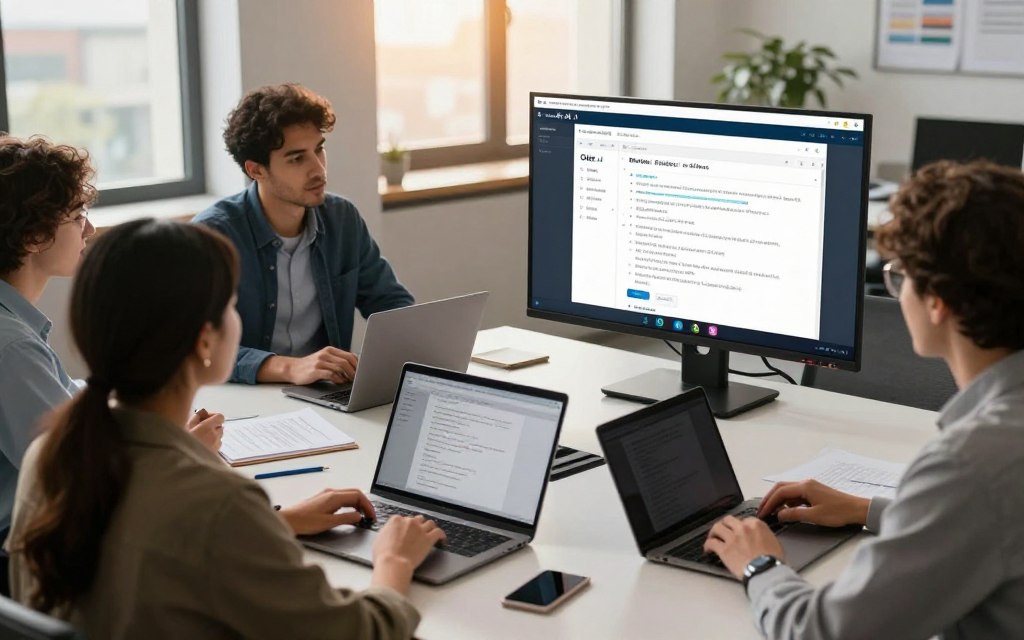
Troubleshooting Common Otter AI and Teams Integration Issues
Using Otter AI with Microsoft Teams may require troubleshooting. Integration issues can disrupt work and reduce productivity. This guide covers common problems and solutions.
Fixing Audio Capture Problems
Audio capture supports accurate transcription. If you find that Otter AI is not recording your Teams meeting, try these steps:
- Ensure that the correct microphone and speaker are selected in your device settings.
- Check that your browser and operating system permissions allow audio capture.
- Confirm that the Teams call is using the expected audio device.
- Verify that the Otter AI bot has successfully joined the meeting if applicable.
Resolving Sync and Calendar Issues
Sync issues can cause missed meetings or recordings. If you experience Teams calendar sync problems, try these solutions:
- Check that your Microsoft account is correctly connected to Otter AI.
- Review calendar permissions to ensure Otter AI has access.
- Confirm that your time zone settings are accurate.
- Examine event ownership and recurring meeting settings for any discrepancies.
- Consult your administrator for any restrictions that may affect integration.
Addressing Transcription Accuracy Concerns
Accurate transcription supports clear communication. If you need to fix Otter AI transcription errors, try these tips:
- Position your microphone closer to the speaker for clearer audio.
- Reduce background noise during meetings to enhance clarity.
- Encourage one person to speak at a time to avoid confusion.
- Introduce speakers explicitly to help the AI recognize different voices.
- Utilize custom vocabulary for industry-specific terms.
- Make manual corrections to transcripts as needed for accuracy.
For persistent issues, review the latest Otter AI audio troubleshooting guidance from Otter AI and Microsoft Teams support. Integration behavior may change, so updated guidance can help you handle new challenges.
Otter AI Pricing Plans and Which One Suits Teams Users
Understanding Otter AI pricing can help users choose the best option for their Teams experience. Teams users should compare each tier with their needs, meeting volume, and collaboration goals.
Overview of the Free Plan
The Otter AI free plan introduces the platform’s main transcription and note-taking tools. Users can try these core features without paying. Check current limits for transcription minutes, storage, exports, and AI features.
Comparing Pro, Business, and Enterprise Plans
The Otter AI Pro, Otter AI Business, and Otter AI Enterprise plans offer more tools for growing teams.
- Otter AI Pro: Ideal for individual users, this plan provides increased usage limits and advanced productivity features. It’s perfect for professionals who need more extensive transcription capabilities.
- Otter AI Business: This plan is tailored for teams, offering shared workspaces and centralized management. It allows for better collaboration controls, making it suitable for groups that frequently work together.
- Otter AI Enterprise: Designed for larger organizations, this plan includes comprehensive security reviews, identity management, and compliance support. It’s essential for businesses that prioritize data governance and onboarding processes.
When choosing a plan, compare its cost with time saved on notes and follow-up work. Also check whether company policies or Microsoft 365 subscriptions change the total deployment cost.
Best Practices for Team Collaboration Using Otter AI
Effective team collaboration with Otter AI starts with a shared Otter AI workspace. It turns Otter AI from a simple note-taking tool into a complete system for team meeting documentation. Create shared workspaces or folders for departments, projects, clients, or recurring meeting types. These spaces keep documentation consistent and organized.
Each workspace needs clear ownership and access rules. This clarity builds accountability and shows everyone their responsibilities for meeting notes. A standard review process is also essential.
The meeting owner should check the transcript, confirm decisions, and assign action items. Then, they should post a concise recap in the appropriate Microsoft Teams channel. This process fosters transparency and strengthens collaboration.
Creating Shared Otter AI Workspaces
To make shared Otter AI workspaces more useful, teams should use naming rules and consistent tags. These steps make documents easier to find and retrieve. A retention schedule for meeting notes also helps manage storage and archive outdated information.
Teams should treat AI-generated notes as drafts. Otter AI provides a strong foundation, but people must check accuracy and handle sensitive information with care. This approach builds accountability and ensures final decisions reflect the team’s collective input.
Integrating Otter AI with Other Productivity Tools
Connecting Otter AI with other productivity tools can further improve team collaboration. When the organization and current plan support these connections, teams can use Otter AI outputs across several tools. These Otter AI productivity integrations streamline workflows and give all team members access to relevant information.
Teams can connect outputs to project platforms, task trackers, document repositories, or knowledge bases. Permissions and least-privilege access are vital for protecting sensitive data. Limiting access to people who need it reduces information-sharing risks.
Using Otter AI for collaborative meeting notes and productivity integrations improves documentation and strengthens team dynamics.
Conclusion
Use Otter AI with Microsoft Teams effectively to turn meetings into organized, actionable sessions. First, create and verify your Otter AI account. Check your Microsoft Teams permissions, install the integration, and connect your calendar for smooth meeting transcription.
Tell participants about transcription before the meeting. Start recording and check the live transcript for accuracy. Afterward, review and edit it, then share these Teams AI meeting notes to improve collaboration and keep everyone informed.
Several factors support success. Clear audio improves transcription accuracy, while custom vocabulary and speaker names make notes more relevant. Proper permission management keeps everyone involved, and human review of AI summaries remains essential for quality and trust.
Begin with low-risk meetings to test transcript quality and gauge team adoption. As confidence grows, expand Otter AI according to your organizational policies and plan capabilities. Otter AI supports Microsoft Teams productivity by making meetings searchable, accessible, and actionable, without replacing consent or responsible information governance.


 By
By


 By
By